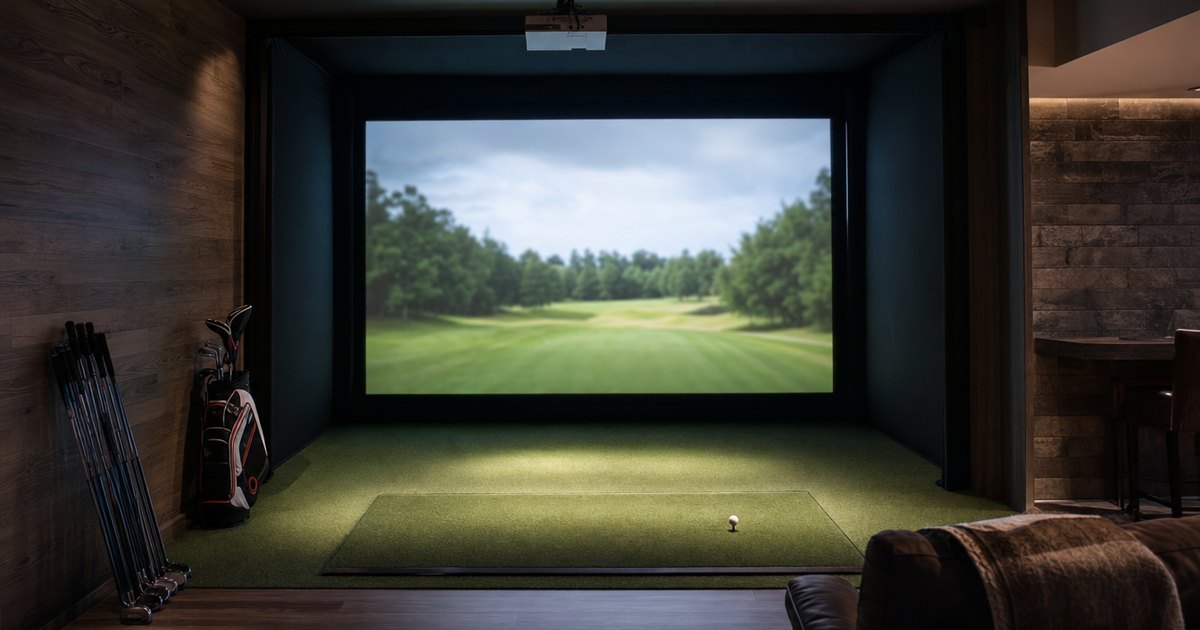
The launch monitor measures your shot. The sim software turns that shot into a ball flying down a beautiful course on your screen. That second part is where the magic lives — and it’s also where a lot of first-time builders get stuck, because the two have to actually talk to each other first. Here’s how I think about the two most common platforms and the handshake between them.
I’ll say up front that I’m a GSPro guy at home, but I’ve played plenty of rounds on E6 at indoor venues, and I genuinely think both are excellent — the right pick depends far more on what kind of person you are than on which is “better.” What I want to do here is save you the headache I see most often in the forums, which has nothing to do with which platform wins and everything to do with the connection.
First, the part nobody tells you
Your launch monitor and your sim software are separate products from (usually) separate companies. They connect through a defined integration — your monitor sends shot data, the software draws the flight. Not every monitor talks to every platform. This is the single most important thing to confirm before you buy, and it’s the thing most people check last.
So step zero, before any GSPro-versus-E6 debate, is: does the monitor I want officially support the software I want? Manufacturers publish compatibility lists, and they change, so check the current one. I’ve watched people buy a great monitor and a great platform and discover they don’t connect. Don’t be that person.
GSPro: the enthusiast favourite
GSPro has become the darling of the home-sim community, and for good reason. It looks fantastic, it runs well, and it has an enormous library of community-built courses — people recreate famous and local courses and share them, so the variety is huge and growing. It’s subscription-based and it leans toward the tinkerer: people who like dialing things in love it.
If you enjoy the hobby side — chasing realism, trying community courses, fiddling with settings — GSPro tends to be the one people land on and stay with. Most popular home-sim monitors support it, but “most” isn’t “all,” so still confirm yours does.
E6 Connect: the polished all-rounder
E6 Connect is the more commercially-polished platform — you’ll find it in a lot of paid indoor golf venues. It’s clean, stable, well-supported, and comes with a curated set of high-quality courses rather than a giant community library. It offers different licensing options, and for some people the “it just works, professionally made” feel is exactly what they want at home.
If you value polish and stability over a sprawling community catalogue, E6 is a strong pick. Like GSPro, its monitor compatibility is broad but specific — check.
How I’d actually choose
I boil it down to temperament:
- You like to tinker, want endless community courses, enjoy the hobby for its own sake: GSPro.
- You want polish, stability, and a curated experience that feels like the indoor-golf venue: E6 Connect.
And underneath both: buy the monitor that officially supports the platform you’ve chosen — or choose the platform your preferred monitor supports. The two decisions are joined at the hip. I’d never pick one in isolation.
What “supported” actually means
This trips people up, so it’s worth being precise. “My monitor works with GSPro” can mean a few different things, and they’re not equally good:
- Native / official support: the manufacturer built and maintains the integration. This is the one you want — it’s the most stable and the most likely to keep working through updates.
- Via a connector or third-party bridge: some combinations only talk through an intermediary piece of software. It can work well, but it’s another link in the chain that can break, and another thing to set up.
- Community workaround: unofficial, unsupported, and at the mercy of the next update. Fine for tinkerers who enjoy that; risky if you just want to play.
When you check a compatibility list, find out which of these you’re getting. A unit that’s “compatible” through a fragile workaround is a very different ownership experience from one with native support, even though both might show up on a forum thread as a yes.
The other things that decide the experience
Beyond which platform you pick, a couple of practical realities shape how the software feels at home. The PC or tablet matters — sim software, GSPro especially, likes a capable graphics card, and an underpowered machine turns a gorgeous course into a stuttery slideshow no matter how good your monitor is. And the subscription is an ongoing cost, not a one-time buy, so factor it into the budget rather than treating the software as free once the hardware’s in.
None of that changes the GSPro-versus-E6 call much, but it’s the stuff that decides whether firing up the sim on a cold night is a joy or a chore.
Getting the handshake working
When it’s time to connect, the pattern is usually: install the software, put the monitor and the computer/tablet on the same network, open the monitor’s connection mode, and pair them through the software’s setup. The details vary by combination, and the manufacturer’s setup guide for your exact pairing is the source of truth. The good news is that for officially-supported combinations it’s generally straightforward — the headaches almost always come from trying to force a pairing that was never officially supported.
If you’re building at the affordable end, the monitor-plus-software combinations that play nicest together are part of what I weighed in the best budget golf simulators guide. Pick the pairing first, confirm the compatibility, then enjoy the fun part — because the software really is the fun part, once it’s talking to your numbers.